


Connect Bouncer with DoMyWork
Connect Bouncer with DoMyWork and let an AI agent take care of email verification tasks across the tools you already use.
Simply describe what needs to be done in plain language – from cleaning new webinar leads to checking stale CRM contacts, and DoMyWork can use Bouncer to verify the email addresses as part of the task.
Tell DoMyWork what needs to be done
Instead of building a workflow step by step, describe the task you want to complete.
For example:
“Take the new webinar leads from my Google Sheet, verify them with Bouncer, remove the undeliverable ones, and post a cleanup summary to Slack.”
DoMyWork connects the tools involved and uses Bouncer to run the email verification as part of the process.
Connect Bouncer to DoMyWork:
Getting Bouncer connected takes just a few steps:
- – Log in to your DoMyWork account.
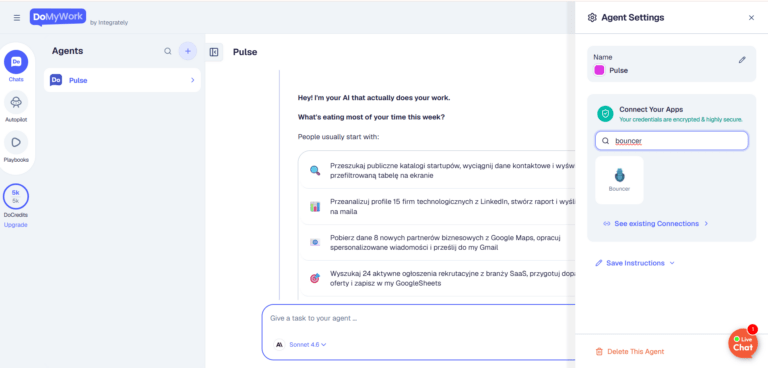
- – Go to Connect Your Apps and search for Bouncer.
- – Select Bouncer to start the connection.
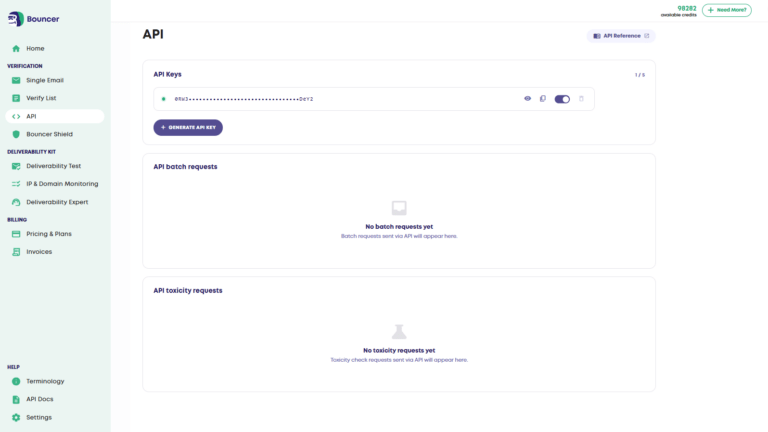
- – Get your API key from the API section in your Bouncer account.
- – Paste the API key into DoMyWork and click Connect Securely.
That’s it. Once connected, your DoMyWork agent can use Bouncer whenever email verification is part of the task you give it.
API Key is the key!
You need your Bouncer’s API key to create the automation. You need your Bouncer’s API key to run your scenario. You can find it on your Bouncer Account, under the API tab.
Copy your key, and paste it on your Integrately account. Then, click the ‘Connect Securely’ button.
Well done, you have created your first automation!