





At the same time, email deliverability keeps getting tougher. Mailbox providers watch sender reputation closely, and a few bad sends can hurt open rates and inbox placement for weeks.
That is where email verification for Google Sheets fits in.
It helps you check email addresses directly where your data already lives, without moving files back and forth or guessing which contacts are safe to email.
This guide walks through how email verification works inside Google Sheets, why it matters, what tools people use, and how teams handle verification in real workflows today.
Why email addresses inside Google Sheets need verification
Email lists do not stay clean on their own. Every Google spreadsheet with contact data slowly collects problems, even when people are careful.
Addresses go bad when users change jobs, abandon inboxes, or mistype domains during form submission. Some emails never existed in the first place. Others turn risky over time because providers disable them silently.
When you send emails from a sheet full of unchecked data, the damage shows up fast. Bounce rate climbs, sender reputation drops, and inbox placement suffers.
Email verification catches these issues before you click send. It checks whether an email address exists, whether the domain responds, and whether the mailbox looks valid enough to accept messages. For teams using Google Sheets spreadsheets as a working database, verification is basic data hygiene.

What email verification actually checks in Google Sheets
Email verification does more than look for an “@” symbol. Modern email verification tools run several checks behind the scenes.
First, the tool validates email addresses at the format level. This step catches obvious errors like missing characters or broken domain structure.
Next comes domain validation. The system checks whether the domain exists and whether its mail server responds correctly.
After that, mailbox-level signals are tested. This step helps confirm whether the email address exists or behaves like a real inbox.
Some tools also flag risky emails. These include role-based addresses, disposable inboxes, or known spam traps.
When you verify email addresses inside Google Sheets, each row receives a clear status. Valid, invalid, risky, unknown, or catch-all results help you decide what to keep, remove, or re verify later.
Common sources of invalid email addresses in Google Sheets
Invalid email addresses rarely come from one place. Most Google Sheets lists are built over time, using multiple inputs.
Google Forms often introduce typos when users rush through registration forms. Manual paste actions from CRM exports can duplicate old or inactive contacts. Shared spreadsheets sometimes mix personal emails with outdated work addresses.
Uploads from external sources bring their own risks. Purchased lists, scraped contacts, or event leads frequently contain invalid addresses from the start.
Without email validation, these issues stay hidden. Everything looks fine until campaigns fail. That is why verifying emails in Google Sheets at regular intervals matters.
It keeps contact data usable, even as time passes.
Real time verification versus batch verification in spreadsheets
There are two main approaches to email verification in Google Sheets. Each one serves a different purpose.
- 1. Real time email verification checks addresses the moment they enter a sheet. This works well for Google Forms, signups, or live lead capture. Bad data never reaches your email list.
- 2. Batch verification focuses on existing data. You select a range, column, or entire spreadsheet and run verification across all rows.
And both approaches matter.
Real time verification protects new entries, while batch verification cleans older data. Many teams use both together. They verify new emails instantly and re verification older contacts on a suitable time range, depending on how often the list changes.
How email verification improves sender reputation and campaign performance
Sender reputation depends on patterns, not single sends. Mailbox providers track bounce rate, invalid emails, and engagement signals over time. When you send emails to invalid addresses, providers see it as careless behavior. That hurts inbox placement, even for valid recipients.
- Clean data changes this pattern.
- Lower bounce rate supports better sender reputation.
- Improved inbox placement leads to stronger open rates and healthier campaign performance.
Email verification inside Google Sheets helps because it works upstream. You fix the data before campaigns launch, not after problems appear.
For teams sending emails regularly, this becomes a quiet advantage. Messages land where they should, without extra troubleshooting.
Ways people verify email addresses inside Google Sheets
There is no single way to verify email addresses in Google Sheets. Different users choose different setups based on workflow and technical comfort.
Some rely on Google Workspace Marketplace add ons. These install directly into Google Sheets and add verification actions to the menu. Others use automation platforms that integrate Google Sheets with external verification tools. This approach connects sheets to APIs without manual effort.
A smaller group uses scripts or server-side solutions. These setups require more control, an API token, and technical setup, but scale well for larger spreadsheets.
What matters most is reliability and clarity.
The tool should return clear verification results and fit naturally into your spreadsheet flow.

What to look for in an email verification tool for Google Sheets
Not every email verification tool works well inside spreadsheets. Some were built for uploads only, not live data.
A good tool supports Google Sheets integration directly or through automation. It handles large spreadsheets without slowing the app. Clear status labels matter. You should instantly see which email addresses are valid, invalid, or risky.
Control over selected range and columns helps avoid mistakes. You want to verify only the concerned sheet or column, not overwrite unrelated data.
Security matters too. Contact data often includes sensitive information, even when stored in a simple spreadsheet.
Finally, pricing should match usage. Many teams prefer free tiers or pay-as-you-go models for verification tasks.
Email verification and Google Workspace workflows
Google Sheets rarely exists alone. Most teams use it alongside Gmail, Docs, and other Google Workspace tools.
Email verification fits naturally into these workflows. Verified results in a spreadsheet feed into outreach tools, CRMs, or email platforms. When sheets connect to Google Workspace accounts, collaboration increases. Multiple users work with the same data, which makes verification even more important.
Without validation, one bad paste can affect everyone. With email validation in place, teams keep control over shared data quality.
Using Google Forms with email verification in Sheets
Google Forms is a common source of new email addresses. Event registrations, waitlists, and signups often feed directly into a Google spreadsheet. Without real time verification, invalid addresses slip through easily. Typos, fake emails, or disposable inboxes all make it into the sheet.
When verification runs automatically after form submission, data quality improves fast. Invalid email addresses get flagged before anyone sends follow-ups. This setup reduces manual cleanup and repetitive tasks. Teams spend less time fixing data and more time using it.
Handling re verification and long term data quality
Email addresses change over time. A valid address today may turn invalid months later. That is why re verify processes matter.
Teams choose a suitable time range based on how often they email contacts. Some re verify quarterly. Others re verification before major campaigns.
Google Sheets makes this easier because all data stays visible. You select the sheet, run verification again, and update statuses without exporting files. This habit protects sender reputation long term. It also keeps contact data usable as teams grow.
Bouncer and Google Sheets verification workflows
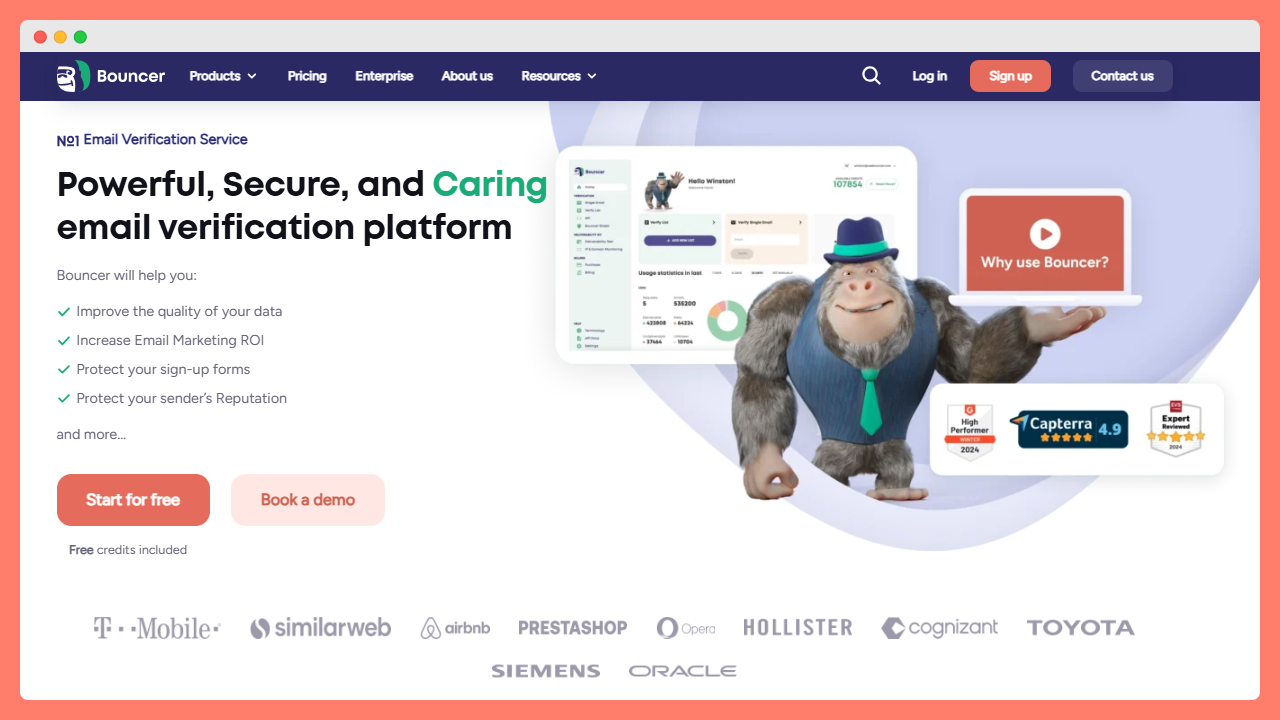
Bouncer supports email verification for Google Sheets through automation platforms like Zapier. This setup works well for teams that want reliable verification without manual steps.
When you add a new row to your Google Sheets spreadsheet, Zapier can trigger Bouncer automatically. The email address in that row gets verified and the result is written back to the sheet. This workflow helps maintain clean email lists continuously. Invalid addresses are flagged early, reducing bounces and improving deliverability.
But Bouncer can offer you many other great features:
Bouncer’s Email Verification checks format, domain, and mailbox signals. The Email Verification API handles verification at scale, with fast response times.
Bouncer Shield fits real time scenarios. It identifies invalid, malicious, or fraudulent email addresses at the moment of entry.
For teams managing larger systems, Bouncer AutoClean connects verification to CRMs and spreadsheets without manual work. Toxicity Check adds another layer by identifying harmful addresses that can damage sender reputation.
Data Enrichment improves campaigns by adding public company information to verified contacts. Deliverability Kit supports inbox placement testing and authentication monitoring. Email Engagement Insights show how active contacts are in their inboxes overall.
These options exist for teams that want flexible control without overselling or locking into complex systems.

Choosing between add ons, automation, and APIs
There is no universal best option for everyone. The right approach just depends on your scale, skill, and workflow.
Add ons from the Google Workspace Marketplace work well for smaller sheets and simple needs. They offer quick setup and direct control inside the spreadsheet.
Automation platforms suit growing teams. They connect Google Sheets to verification tools without scripting or server management.
APIs fit advanced users. They offer maximum control and performance, especially when handling large datasets.
The important part is consistency. Email verification should happen regularly, not once.
Final thoughts on email verification for Google Sheets
Google Sheets remains one of the most flexible places to manage email addresses.
That flexibility also creates risk when data grows unchecked.
Email verification keeps spreadsheets usable. It protects sender reputation, improves inbox placement, and supports stronger campaign performance.
Whether you use add ons, automation, or API-driven workflows, the goal stays the same. Clean data leads to better results.
Tools like Bouncer fit naturally into these setups. They verify emails where teams already work, without disrupting daily processes.
When email addresses stay valid, everything downstream works better. That is the quiet power of email verification inside Google Sheets. So try Bouncer and check this integration today.


